
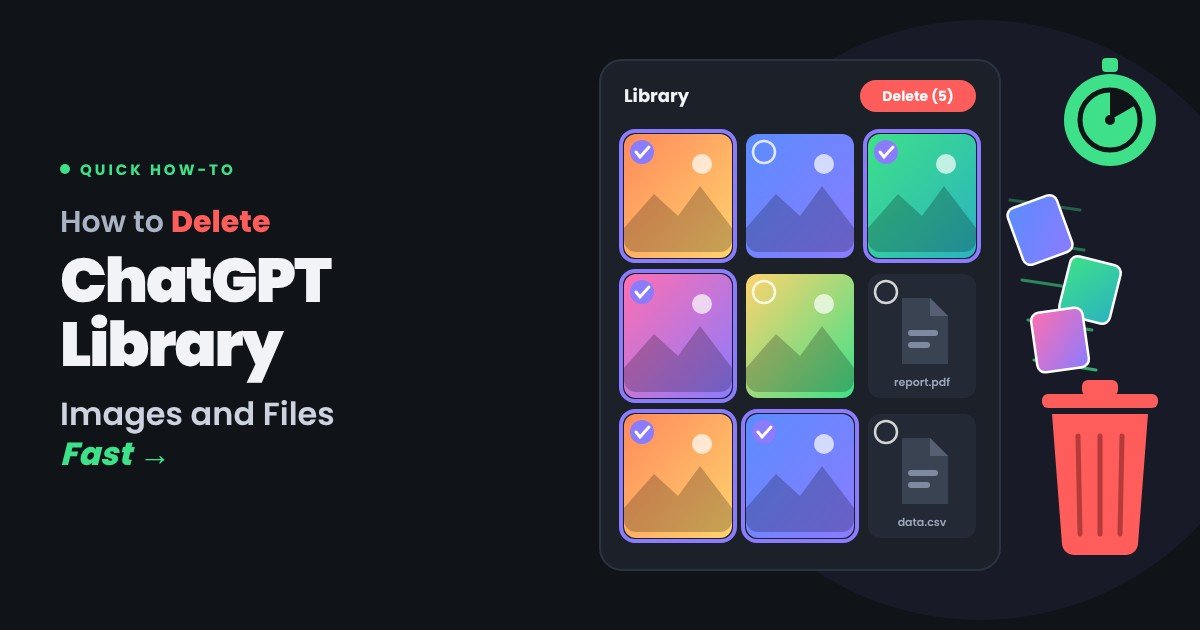
Most guides on this topic give you three steps that do not work.
They tell you to open the Library, click the three-dot menu, and choose Delete. That works for some items. For older images, the delete option is simply not there.
If you have tried and failed, you are not doing it wrong. The feature is incomplete.
This guide covers what actually works: deleting recent items, the workaround for older ones, what deletion really removes, and what to do if you need data genuinely gone.
What the ChatGPT Library Actually Is
The Library is where ChatGPT stores the files and images tied to your account.
It collects two kinds of things. Images that ChatGPT generated for you, and files you uploaded into conversations. Both accumulate automatically. Nothing asks your permission first.
You reach it from the sidebar on desktop, or the top-left menu in the mobile app.
Two reasons people want it cleared. Privacy, because old uploads may contain sensitive documents. And storage, because file uploads count against your account’s limit.
The Honest Answer: There Is No Delete-All Button
Start here, because it saves you hunting for one.
ChatGPT has no option to wipe the whole Library at once. There is no “select all,” no bulk delete, and no clear-library setting buried in preferences.
You remove items individually, or you remove the conversations that created them.
That is a real product gap, and it has been raised repeatedly in OpenAI’s own community forums. Until it changes, the methods below are what you have.
How to Delete a Recent Image From the Library
For images created after the Library was rebuilt in mid-2026, the direct method works.
On desktop:
- Open the sidebar and click Library.
- Hover over the image you want gone.
- Click the three-dot menu on the image.
- Choose Delete.
On mobile:
- Tap the menu icon at the top left.
- Tap Library.
- Tap and hold the image, or tap its three-dot menu.
- Choose Delete.
If Delete appears, you are done. If it does not, the image predates the change and you need the next method.
How to Delete Older Images: The Workaround That Works
Older images have no delete option in the Library at all. The fix is indirect but reliable.
You delete the conversation that produced the image. The image goes with it.
Here is the sequence:
- In the Library, open the image you want to remove.
- From its three-dot menu, choose Open chat. This takes you to the conversation that created it.
- Send any short message in that chat, such as “hi.” This pushes the conversation to the top of your recent list so you can find it easily.
- Leave the chat. In the sidebar, hover over it on desktop, or tap and hold on mobile.
- Choose Delete.
- Return to the Library and refresh the page, or pull down to refresh in the app.
The image should now be gone.
Step three looks pointless but saves real time. Without it, you are scrolling through months of chat history trying to identify the right one.
One efficiency note. If a single conversation generated twenty images, deleting that one chat removes all twenty. Group your cleanup by conversation rather than by image.
What Deletion Actually Removes, and What It Does Not
This is where people get a false sense of security.
Deleting an item from the Library removes it from your view. It does not necessarily remove it from OpenAI’s systems immediately.
A few things worth understanding:
- Deleted conversations are typically removed from backend systems within 30 days, unless they are retained for legal or security reasons.
- Items flagged in a safety review may be kept longer. This is standard across major AI services.
- Anything you already downloaded stays on your device. Deleting from the Library does nothing to your local copies.
- Shared links survive separately. If you shared a conversation, revoke the link too.
So “deleted” means removed from your account and queued for removal. It does not mean instantly erased everywhere.
How to Delete Uploaded Files, Not Just Images
Files behave slightly differently from generated images.
Uploaded documents, spreadsheets, and PDFs appear in the Library’s files section. They count toward your storage allowance, which varies by plan.
To remove them:
- Open Library and switch to the files view.
- Select the file.
- Use its menu to delete it.
If a file resists deletion, the same chat-deletion workaround applies. Find the conversation you uploaded it into, and delete that conversation.
For files inside a Project, check the Project’s own file list as well. Project files are managed separately from loose chat uploads.
Which Method Removes What
It helps to see the options side by side before you start clicking.
| Method | Removes the image | Removes the chat | Frees storage | Works on older items |
|---|---|---|---|---|
| Delete from Library | Yes | No | Yes, for files | Often not available |
| Delete the conversation | Yes, all of them | Yes | Yes | Yes |
| Archive the conversation | No | Hides only | No | Yes |
| Delete your account | Yes | Yes | Yes | Yes |
| Privacy deletion request | Yes | Yes | Yes | Yes |
Note the archive row. Archiving looks like cleanup but removes nothing. It only hides the conversation from your sidebar, and the images stay in the Library.
When Deletion Does Not Seem to Work
Four common problems and their causes.
The image reappears after you delete it. This is usually a caching issue. Refresh the page properly, or sign out and back in. If it persists across devices, the deletion did not register.
The Delete option is greyed out. You are likely viewing an item inside a shared Project or a workspace with admin-controlled retention. Your administrator may have restricted deletion.
You deleted the chat but the image is still listed. The Library does not always refresh immediately. Pull down to refresh in the app, or reload the browser tab.
You cannot find the conversation. Use the search box in the sidebar and search for words from your original prompt. If the chat was already deleted, the orphaned image may take time to clear.
On the desktop app specifically, some users find the Library behaves differently from the browser version. If the menu you need is missing, open ChatGPT in a browser and try there. The account is the same, and the web interface usually gets features first.
How to Reduce What Lands in the Library
Cleanup is tedious. Prevention is faster.
Three settings and habits that cut the volume:
- Use temporary chats for anything sensitive. These do not persist in your history, so they do not fill the Library.
- Turn off model training in data controls if you would rather your content not be used for improvement. This is a separate setting from deletion and worth checking regardless.
- Download images you want and delete the chat immediately. Treat the Library as a transit area, not storage.
Also worth knowing: images you generated inside a shared Project are managed at the Project level. Check the Project’s own file list separately, because they will not always appear where you expect in the main Library view.
For business use, the calculation is different. If your team uploads client documents into ChatGPT, a workspace plan with admin-controlled retention is a better answer than asking everyone to clean up after themselves.
If You Need Data Genuinely Gone
Individual deletion has limits. Two stronger options exist.
Delete your entire account. This removes conversations, Library contents, and account data, subject to the same retention window. It is the nuclear option and it is irreversible.
Submit a data deletion request. Users in regions covered by privacy regulations such as GDPR can request erasure directly through OpenAI’s privacy portal. This is the appropriate route if you uploaded something you are legally obliged to remove.
For a business that uploaded client data by mistake, the privacy request route is the one that produces a documented response. Clicking delete in the Library does not.
Final Thoughts
Deleting your ChatGPT Library is more awkward than it should be, and the reason is simple. The Library was added to store things, and the tools to remove them came later and incompletely.
The practical approach is this. Try the direct delete first. When the option is missing, open the chat, send a quick message to surface it, delete the conversation, and refresh. Work conversation by conversation rather than image by image, because that is several times faster.
And set your expectations correctly on what deletion means. It removes items from your account and starts a removal process, typically completing within thirty days. If you need a stronger guarantee than that, the privacy request route is the one that gives you a record.
The best habit remains the simplest. Download what you want to keep, delete the chat, and stop treating the Library as a filing cabinet. Ten minutes of cleanup once a month beats an hour of panic later when you realise what is sitting in there.
Frequently Asked Questions
Can I delete my entire ChatGPT library at once?
No. ChatGPT has no bulk delete or select-all option for the Library. You must remove items individually or delete the conversations that created them.
Why is there no delete option on my ChatGPT images?
Images created before the Library was rebuilt in mid-2026 have no delete button. Delete the conversation that generated them instead.
Does deleting a ChatGPT chat delete its images?
Yes. Removing a conversation removes every image generated inside it, which makes chat deletion the fastest cleanup method.
Are deleted ChatGPT images permanently removed?
They leave your account immediately and are typically purged from backend systems within 30 days, unless retained for legal or safety reasons.
Do ChatGPT library files use up my storage?
Yes. Uploaded files count against your account’s storage allowance, which differs by plan. Generated images are stored separately from that allowance.


 AI/ML Strategy and Consulting
 Data Science And Data Analytics
 Generative AI
 AI Consulting Services
 AI Automation Solutions
 API Integration